
Introduction
An Outline Generator is a tool that creates a structured framework for your article or blog post based on your given keyword or topic. Instead of starting from scratch, it gives you headings, subheadings, and key points in a logical order, making content creation faster and more organized.
Example:
Input: Affiliate Marketing Tips
Output:
H1: Affiliate Marketing Tips
H2: What is Affiliate Marketing?
H2: Why is Affiliate Marketing Popular?
H2: Proven Tips to Succeed
   H3: Choose the Right Niche
   H3: Build an Engaging Website
   H3: Use SEO Strategies
H2: Common Mistakes to Avoid
H2: Conclusion
HOW TO GENERATE
Please go to this link – https://app.affpilot.com/dashboard and find ‘Outline to Article’ in sidebar. Press it

Alternatively you can find it from dashboard too.

Now you will find a page where you can give your input keyword and do other stuffs. Let’s go one by one
Keyword:
Enter the keyword you want article for. Select if the title of your content be ai generated or not, toggle the switch as par your requirement.

Next choose your content language. Choose your content length.
Here are some more things to consider. You can choose your desired no of subheadings you want in your content. Similarly for FAQs, select brand voice. Also you can or can not use Google images, Youtube links as per your requirement. After that you click ‘Create Outline’ and here you go.

You can see it created a nice outline, we are not showing the whole page but you get it right?
Not only that you can create your own outline or also can generate more outline by clicking “Generate NLP & LSI“
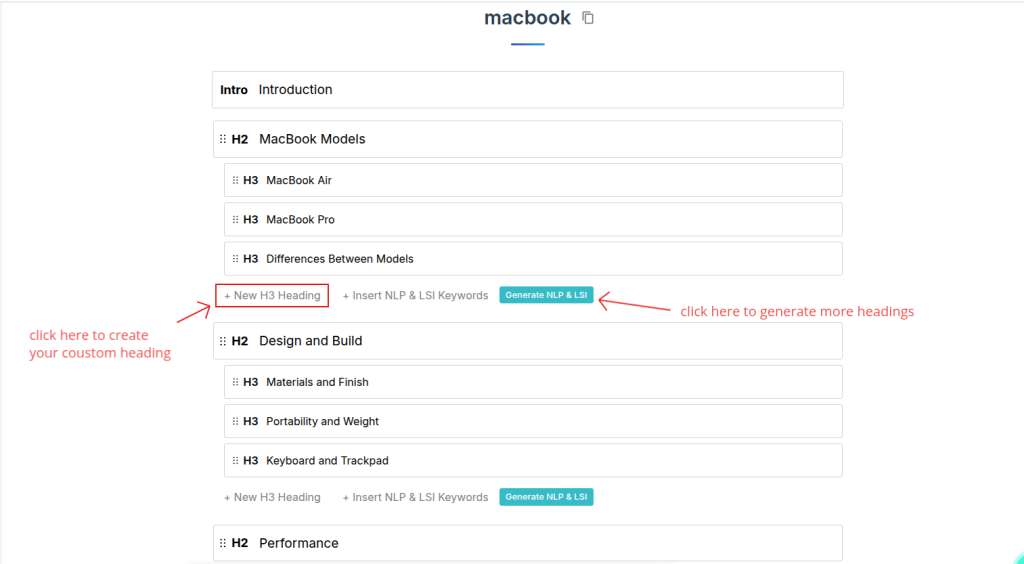
Then after right at the end you will find create button . Press it and here we go , you generated the content.

Task Details
After generating articles, you can view the details of your generated content. By clicking “Write Article”, you will be automatically redirected to this page.

This page displays all relevant information about your generated articles:
Post Details
- Post Type: The type of article (e.g., AI Review Article, Info Article, Biography Article)
- Submitted: The date and time when the task was submitted
- Progress: Shows how many articles have been generated out of your provided keywords
Task Details
- ID: A unique number assigned to your task among all users and tasks
- Keyword: The keyword(s) you provided for this article
- Title: The title of the generated article
- Credit Used: The number of credits consumed for this article
- Remarks: Any errors or important notes will be displayed here
- Status: Indicates whether the task is in queue, running, or completed. Completed articles can be viewed in the Editor.
Editor Mode
You can view and edit the generated article by clicking the “Open In Editor” button. This section includes the information about your content. You can update the article and click “save” from the top bar for later publishing.
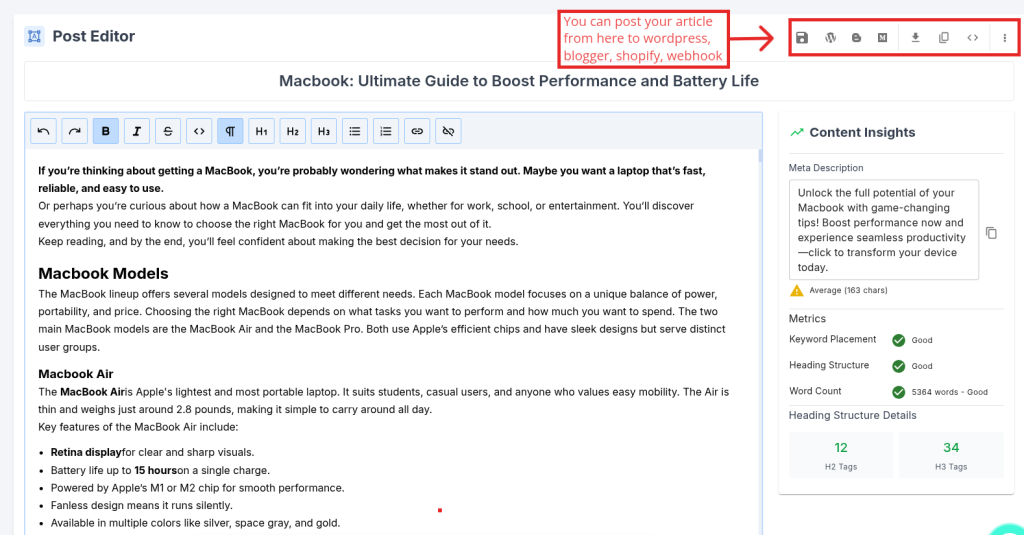
Now you have learned all about how to generate AI-powered Amazon review articles, set up your API, configure filters, and publish your content efficiently using Affpilot.