
First you will be shown how to configure Shopify then we will connect it to Affpilot
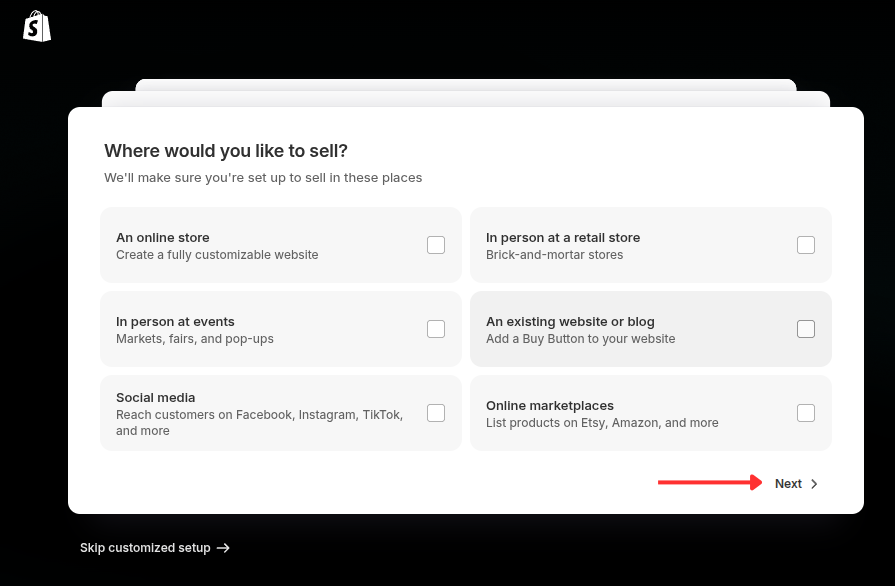
- After creating account to shopify please go to this URL to create a shop. Click the create store button . You will be prompted page like this but you can skip these.
In your shopify admin page find the Settings button located left bottom corner of the page and tap it.

You will see a new page and Apps and sales channels from there

Select Develop apps and then select Allow custom app development and then give your app name


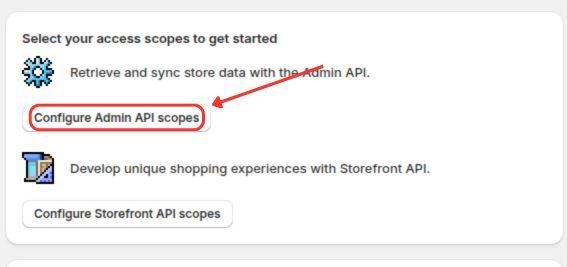
Select configure Admin API scope
In the search bar search for content and give tick mark to read_content and write_content. Similarly select for files and give read_files and write_files tick mark.

In the search bar search for content and give tick mark to read_content and write_content. Similarly select for files and give read_files and write_files tick mark.

Press save button and then press Configuration button again and and you will see a button “Install app” at the top right corner of the page. Press it and then a pop up will show up and press install again.


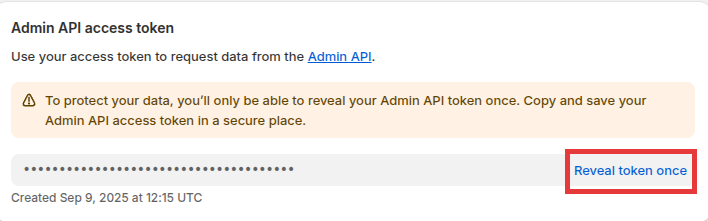
Copy and paste your Admin API access token . Make sure to copy it properly, as you can’t view the access token again as it provides authenticated Admin API access.
Now to create a blog go to Blog posts section under Content section and Click Create blog post button.
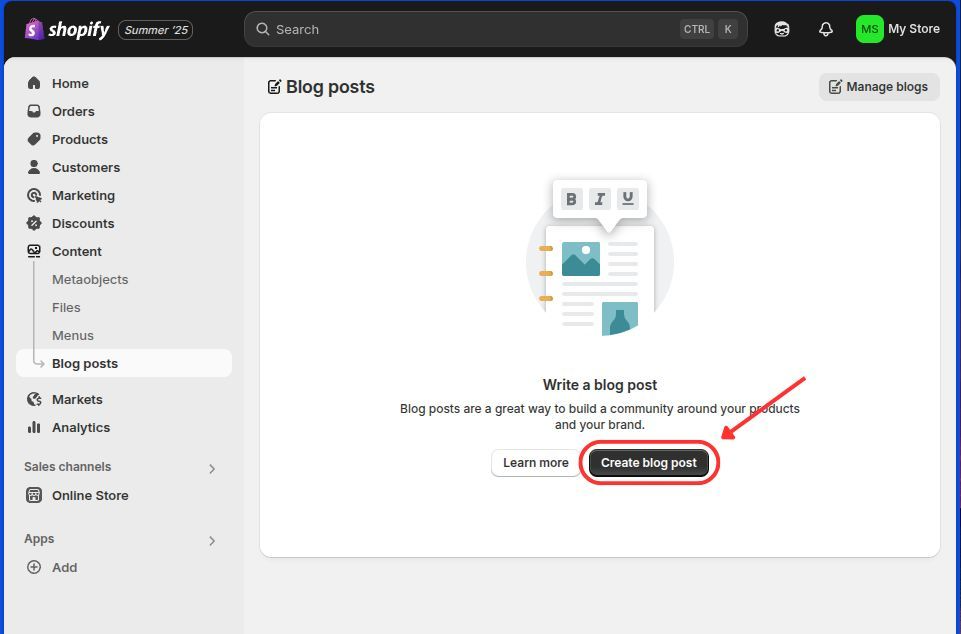
You will be prompted a page like this. You are now good to go. Next you will connect shopify with affpilot.

Now, return to Affpilot and find Shpoify
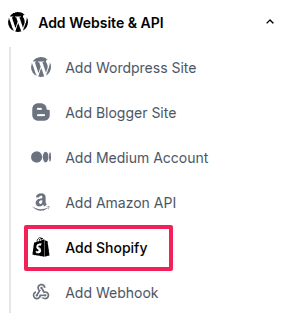
You will see a page like this and you can add your store here pressing button “Add a store“

Provide proper info for each input section
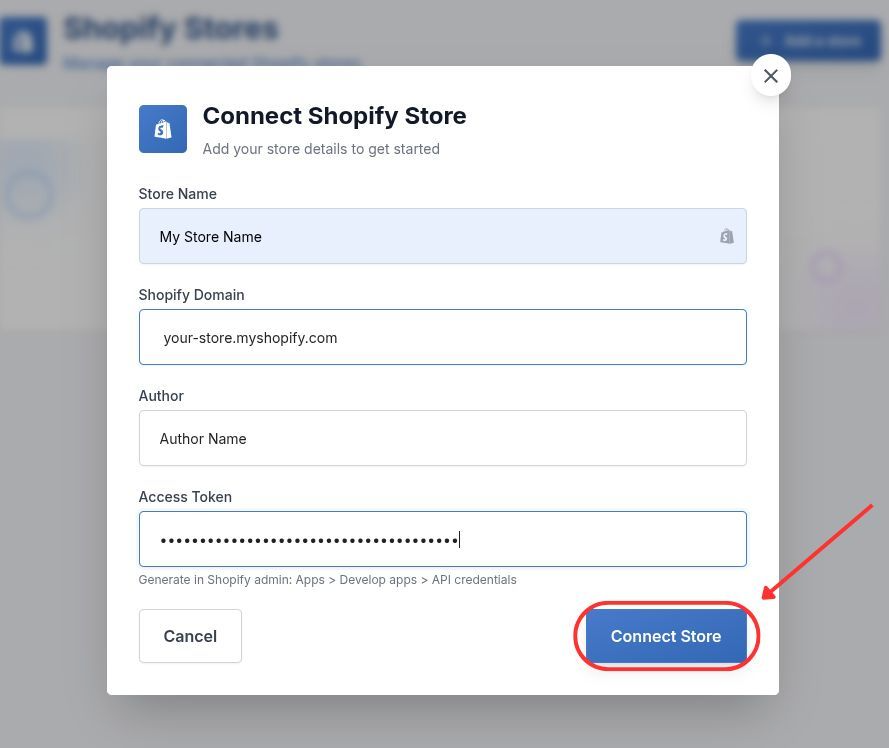
If you connect your shop successfully, then you will see something like that

You can update your info. Here is the edit button and you can press it and will see your info , here you will provide proper input and you will be able to update your info by clicking ‘update store’


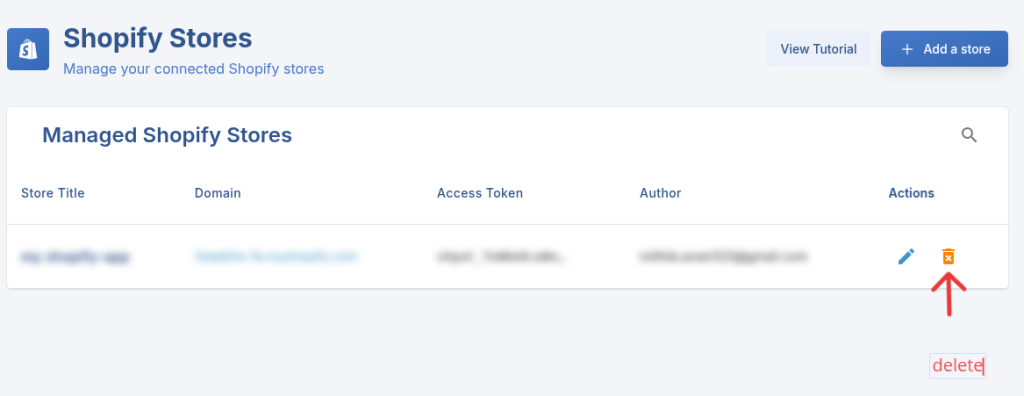
You can also delete your added account by pressing the delete button. You press it then a pop up will be shown and you will have to press “Delete” button again.
Note, This process cannot be undone.

Now you are ready to publish contents in your shopify account. Here is an example, Here select shopify from Publishing Destination drop-down menu. Then select your store, category and post status. Then you can generate your post and Affpilot AI will post this content in your Shopify site.
