
Affpilot provides access to an affiliate network that offers a wide range of products across different niches. You can earn money by targeting these niches/keywords, generating content, and publishing articles that promote those products.
To begin with Link to Article, simply click on the “Link to Article” button in the sidebar. This will open a new page where you can explore affiliate products, choose niches, and start generating articles to boost your earnings.

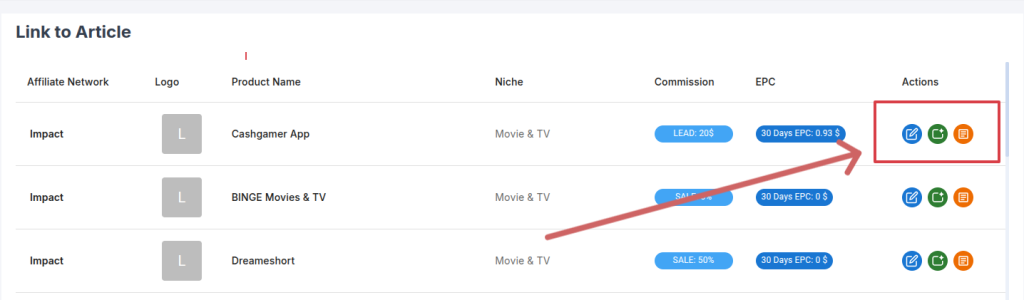
By clicking the “Link to Article” button, the below page will open, where have a list of product with Affiliate Network, Logo, Product Name, Niche, Commision, EPC, and Actions.

On this page, you’ll find a search filter, marketplaces, and niche options located on the left side. These filters help you quickly find products or niches you want to generate articles for.

For example, if you search for “movie” as a product name, you will get a filtered list of products related to that keyword. The results will display products from the selected marketplace and niche, making it easier for you to pick the right ones for generating articles.

In the Affiliate Network product list, you will see the following details:
- Logo – The brand or product logo.
- Product Name – The name of the product available in the network.
- Niche – The category or industry the product belongs to.
- Commission – The percentage or amount you will earn per sale.
- EPC – Earnings Per Click, showing the average payout performance.
- Actions – Options to generate an article or take further steps.
In the Affiliate Network product list, the Actions column provides three options:
- Write Article – Generate an article directly for the selected product.
- Generate Keyword – Explore related keywords for the product to target in your content.
- Write Application – Create an application or campaign using the product for broader promotion.
If you click on Write Article, Affpilot will open a page to select which type of article you want to write.

After clicking an action, you will be taken to the article generation flow. If you are not familiar with how to write articles, please refer to the documentation [link].
If you click Generate Keywords button, Affpilot will open the Keyword Explorer page with this product name.

If you are not familiar with how to use the Keyword Explorer, please read this documentation [link] for step-by-step instructions.
If you click Write Application, Affpilot will open the Affiliate Application Writer feature. The feature page includes the following options and fields:

After filling in all the required input fields, click the “Write for Me” button. Affpilot will then generate your content automatically.
Example:

Once your content is generated, you can review, edit, and publish it just like any other article in Affpilot. This streamlined workflow allows you to efficiently create affiliate content, optimize for your chosen keywords, and start earning from your niche products.