
INTRODUCTION
Purpose: Create a long-form, high-quality affiliate article that drives engagement and conversions by promoting a product with your link.
- Should include the product name + primary keyword or “review,” “guide,” or “deal.”
- Example: “[Product Name] Review: Is It Worth It in 2025?”
- Hook the reader with a problem or need.
- Introduce the product as a solution.
- Include your affiliate/product link naturally.
Example:
If you’re struggling with [problem], [Product Name] might be the perfect solution. Find out how it works and if it’s worth your investment [affiliate link].
HOW TO GENERATE
Please go to this page – Affpilot-Dashboard and find ‘Product link to blog article‘ in sidebar. Press it-

Now you will find a page where you can provide your input keyword. Let’s go one by one-
First input the product name, URL and Niche you are promoting. Then you can give keyword by your own.

Alternatively you can generate keyowords by clicking the ‘Generate Keyword‘ button. You see in the picture there are a lot of keywords generated.

Now include affiliate link you want, that provides the service you mentioned in the product name

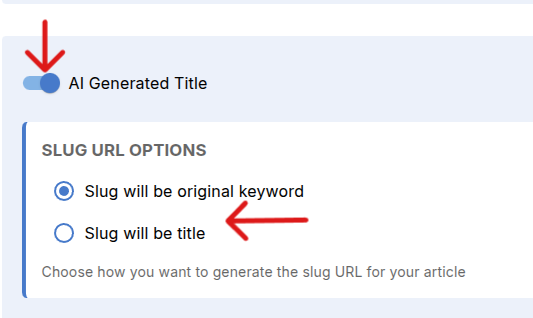
Select if the title of your content be ai generated or not, toggle the switch as par your requirement. Also you can get your slug like as title or keyword as your wish.
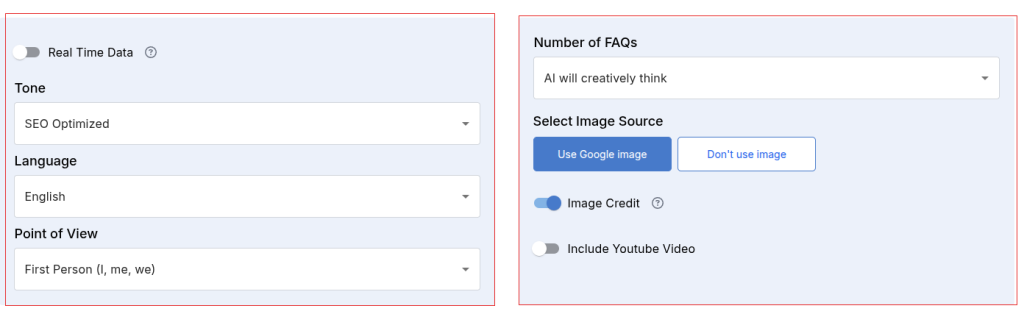
You can choose your desired tone from the dropdown menu, as well as the number of subheadings you want in your content. Similarly, you can set options for FAQs, select your brand voice, and choose the point of view. Here, point of view refers to the perspective on which the content will be generated. You can also choose whether or not to include Google Images and YouTube links based on your requirements.
Publishing Destination
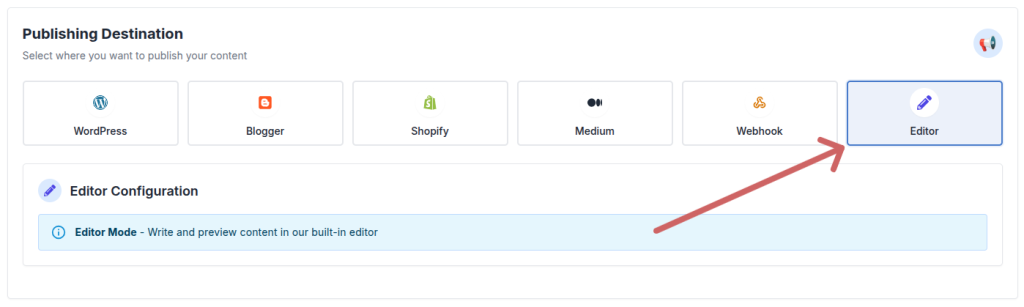
Next, choose where you want your generated review article to be published. Affpilot supports multiple publishing destinations, including:
- WordPress
- Blogger
- Shopify
- Medium
- Your own website (via Webhook)
If you don’t want to publish immediately, you can select Editor Mode. This allows you to save the article inside Affpilot and publish it later after making any edits or adjustments.
Now lets see how to publish in wordpress, blogger, shopify, medium, webhook.
WordPress
If you haven’t connected your WordPress site yet, please see WordPress Tutorial to learn how to add WordPress to Affpilot.
Once your WordPress site is connected:
- Set the Post Status – either publish instantly or save it as a draft for later review.
- Select your WordPress website from the list.
- Choose the Category where the article should be published.
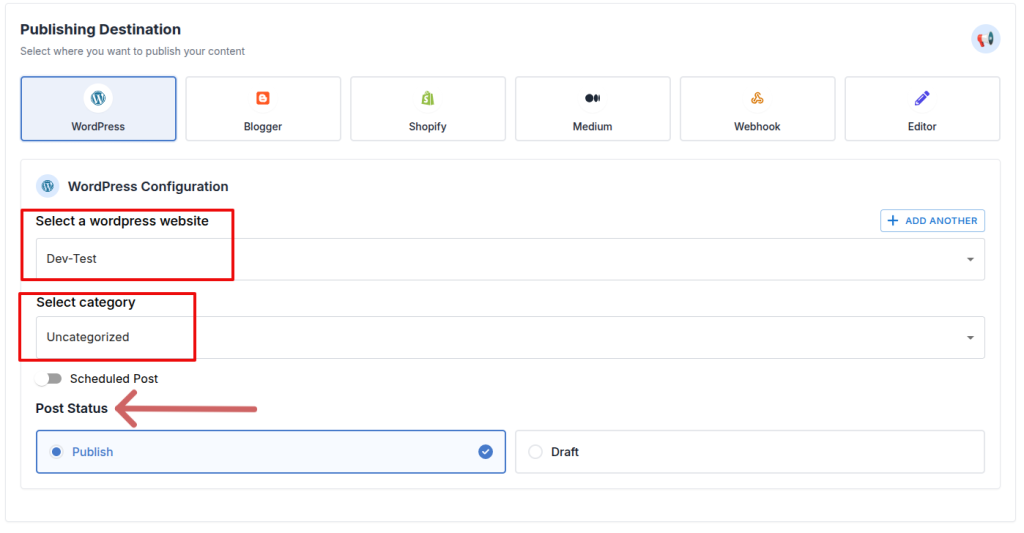
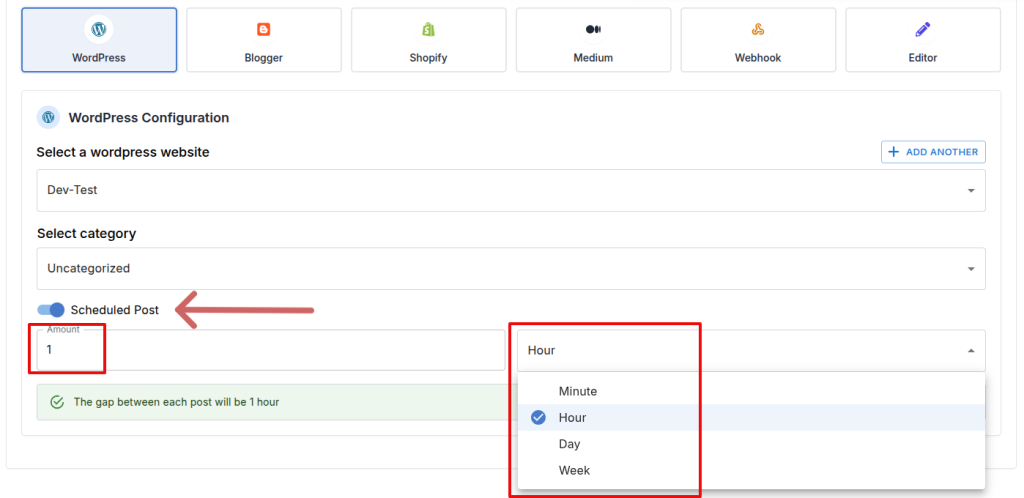
You can also schedule when the article should be published on your WordPress site. To do this, enable the “Schedule Post” toggle button, then set the desired delay by specifying the number of minutes, hours, days, or weeks. Affpilot will automatically publish the article at the scheduled time.
Blogger
If you haven’t connected your Blogger site yet, please see Blogger Tutorial to learn how to add Blogger to Affpilot.
Once your Blogger site is connected:
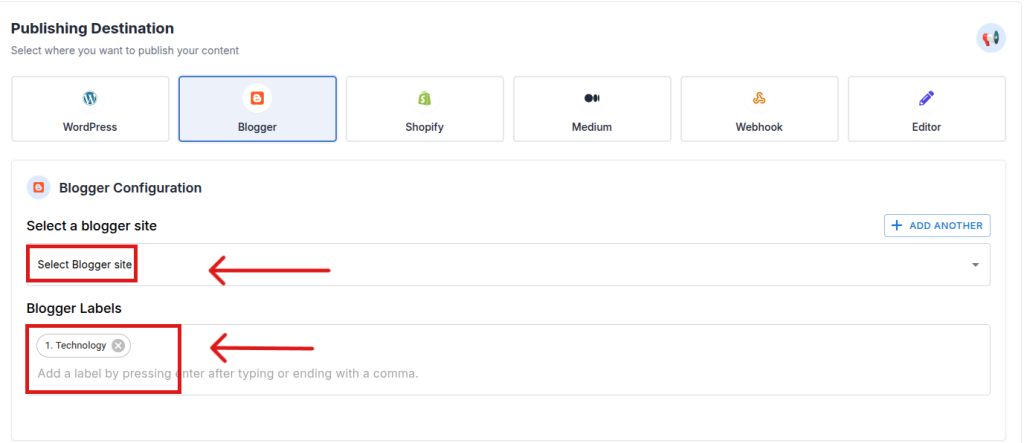
- Select your Blogger website from the list.
- Select Lebel for your post, you can choose multiple too.
Shopify
If you haven’t connected your Shopify site yet, please see Shopify Tutorial to learn how to add Shopify to Affpilot.
Once your Shopify site is connected:
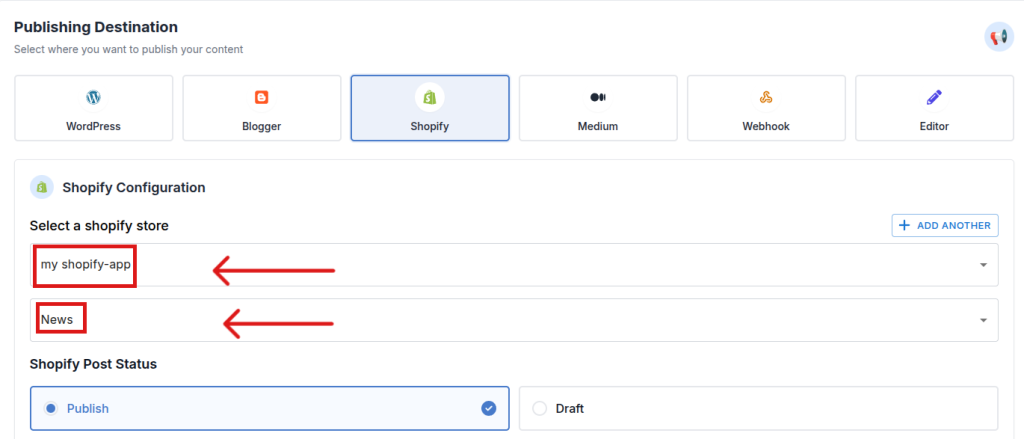
- Select your Shopify website from the list.
- Choose the Category where the article should be published.
- Set the Post Status – either publish instantly or save it as a draft for later review.
- Once you are done then Press the blue button ‘Write Info Article‘
Webhook
If you are not familiar with webhooks, please read Webhook Tutorial to learn what a webhook is and how to add one.
Once your webhook is added and you want to publish via webhook:
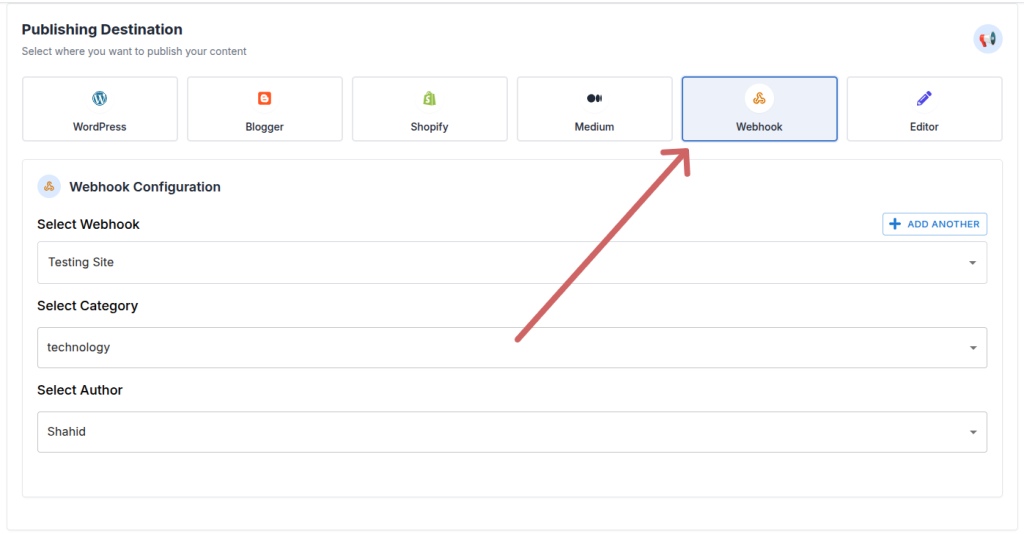
- Click Webhook as your publishing destination.
- Select your Webhook Site, Category, and Author.
After you are done with everything required to create and post a content then you can press Write info article here and you get professional contents .

Task Details
After generating articles, you can view the details of your generated content. By clicking “Write Info Article”, you will be automatically redirected to this page.
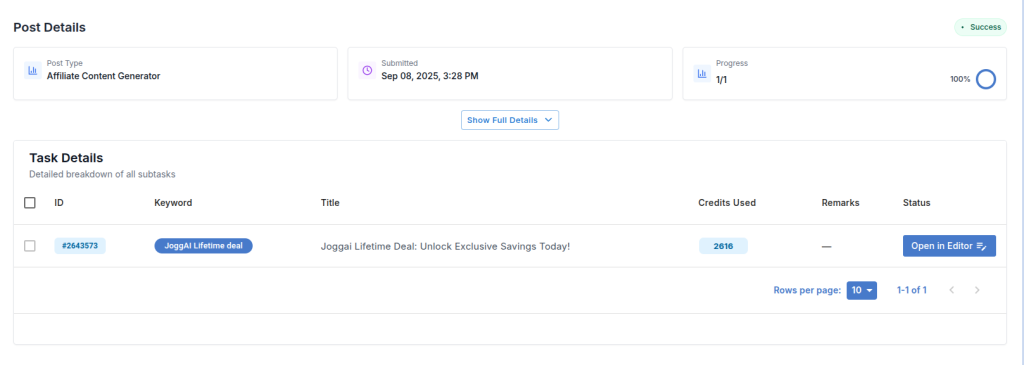
This page displays all relevant information about your generated articles:
Post Details
- Post Type: The type of article (e.g., AI Review Article, Info Article, Biography Article)
- Submitted: The date and time when the task was submitted
- Progress: Shows how many articles have been generated out of your provided keywords
Task Details
- ID: A unique number assigned to your task among all users and tasks
- Keyword: The keyword(s) you provided for this article
- Title: The title of the generated article
- Credit Used: The number of credits consumed for this article
- Remarks: Any errors or important notes will be displayed here
- Status: Indicates whether the task is in queue, running, or completed. Completed articles can be viewed in the Editor.
Editor Mode
You can view and edit the generated article by clicking the “Open In Editor” button. This section includes the information about your content. You can update the article and click “save” from the top bar for later publishing.


See the affiliated link you provided in the content generation time is shown here. Nice, isn’t it?
Now you have learned all about how to generate AI-powered Product link to blog article, set up your API, configure filters, and publish your content efficiently using Affpilot.